 Cord
Cord
More screen for your Mac.
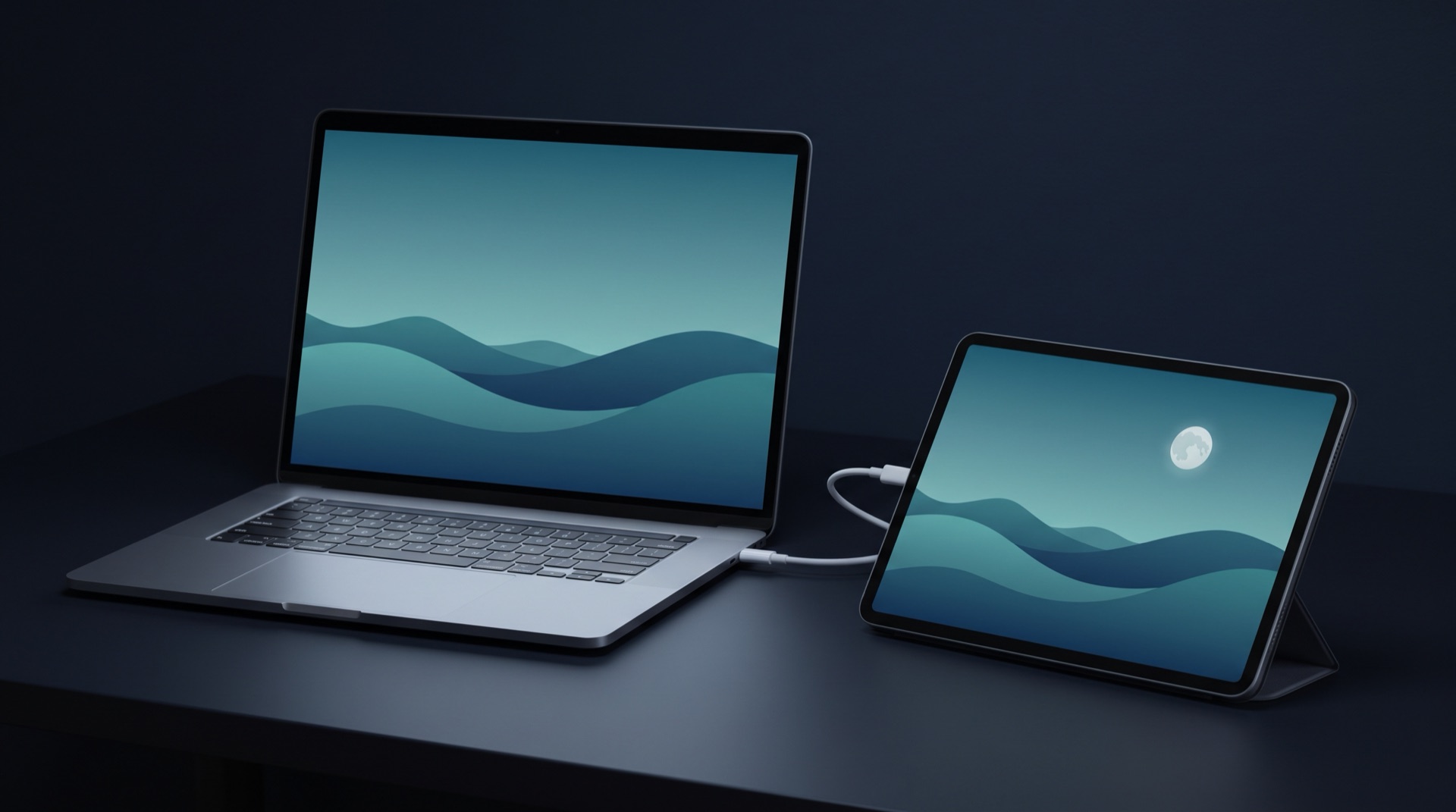
Cord turns the Android tablet you already own into an extra display for your Mac, over the USB-C cable that charges it. No Wi-Fi, no account.
Put the tablet on your desk to work
One cable
Picture and touch travel over the USB-C cable, not Wi-Fi. It works with no network at all, and the tablet charges while you work.
A real display
macOS sees the tablet as one more display. Drag windows onto it, place it anywhere in Arrange Displays, choose its resolution.
Sharp
Sent at the tablet's own resolution with Retina-style scaling, at up to 120 fps on tablets that can show it.
Touch that feels right
Tap to click, drag to scroll, hold then drag to move things, two fingers to right-click. Prefer a mouse feel? One switch.
Any way up
Landscape, portrait, upside down, or follow the tablet as you turn it. You choose on the Mac.
The Dock stays home
Put a display below your Mac's and macOS moves the Dock onto it. With Cord the Dock stays where it was.
No developer mode
USB debugging can stay off. Plug in, tap Allow on the tablet once, and that's it.
Tiny
The Mac app is a 1 MB download that sits in the menu bar. The tablet app is under 1 MB.
Quality is your call
Three levels of picture quality, and 30, 60 or 120 fps. Change them while it runs.
One small panel
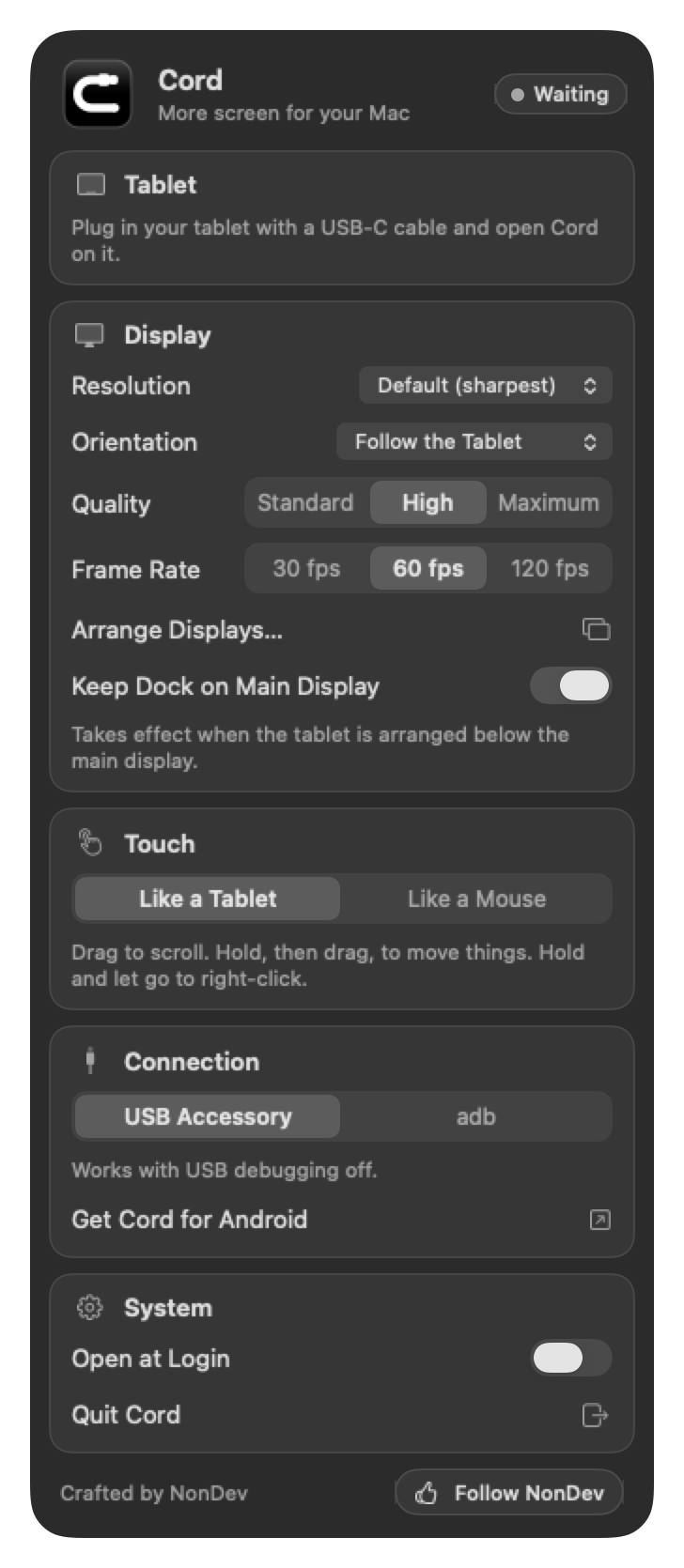
Cord lives in the menu bar, and everything it can do is on one panel. There is no settings window hiding somewhere else.
Touch on the tablet
| Tap | Click |
| Drag | Scroll, with a glide when you let go |
| Hold, then drag | Move a window, drag a file, select text |
| Hold and let go | Right-click |
| Two-finger tap | Right-click |
Two minutes to a second screen
- Download Cord for Mac above, open it, and drag Cord into your Applications folder.
- Open Cord and allow Screen Recording and Accessibility when macOS asks.
- Install Cord on the tablet from Google Play.
- Connect the two with a USB-C cable and tap Allow on the tablet. It becomes a display.
What you need
- A Mac with Apple Silicon and macOS 14 or later.
- An Android tablet on Android 8 or later. Phones work too.
- A USB-C cable that carries data. Some charge-only cables do not.
Try it before you pay
The Mac app is free, and stays free.
Free for 3 hours of use with everything working. Only time with your Mac's picture on the tablet counts. After that, one US$2.99 payment on Google Play keeps it for good. No subscription. Google Play shows the price in your own currency; in Thailand it is ฿99.
Your screen stays on the cable.
The picture travels from the Mac to the tablet over USB and nowhere else. Cord has no accounts, no analytics and no ads.
- Screen Recording: to send the picture of the extra display Cord creates. Nothing is saved.
- Accessibility: to turn your touches into clicks and scrolling, and to keep the Dock in place.
- The Mac app never connects to the internet.
- The tablet app talks to Google Play about the purchase, and nothing else.
What Cord does not do
No wireless mode
Cable only, on purpose: the cable is what keeps the picture quick and steady.
One tablet at a time
One Mac drives one tablet. A second tablet waits its turn.
No Intel Macs yet
For now Cord runs on Apple Silicon Macs only.
Sound stays on the Mac
Cord sends the picture only. Audio keeps playing from your Mac.
Questions, bugs, ideas?
Updates and new projects are posted on the NonDev Facebook page. Message there and a person answers.